- Client
- JPG Insurance, an independent insurance agency in Las Vegas
- What we built
- Sarah, a chat assistant for the website, and a live agent portal for the agency’s team
- Also in the project
- A rebuilt WordPress website and server security work
Visitors to the agency’s website can ask Sarah a question at any hour. She answers from the agency’s own information and takes quote requests in the chat. When a visitor asks for a person, every signed-in agent is alerted, and one of them takes over the same chat with the whole conversation in front of them.
Below is one visit from start to finish, from the first question to the log the office gets each night.
How it works
The screenshots come from a private demo copy of the chat service. The visitors, agents, email addresses and phone numbers in them are made up. The demo ran without the AI service and sent no email, so the answers shown are Sarah’s built-in replies and the emails are examples composed by the service’s own code.
Step 1: A visitor opens the chat
Who: any visitor, on any page, on a computer or a phone.
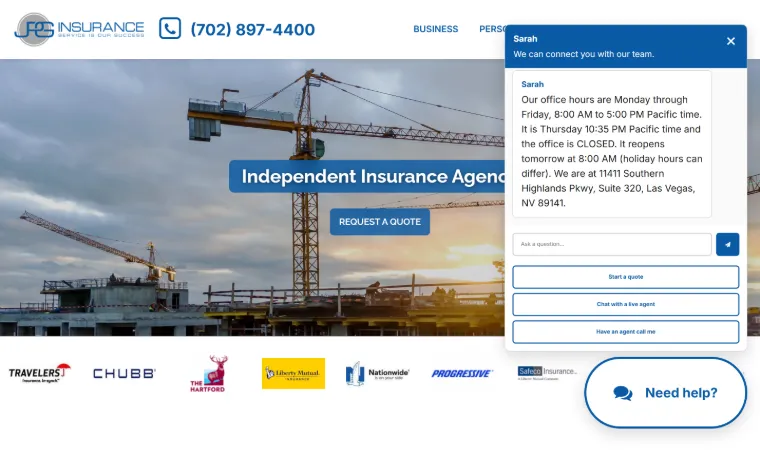
- The Need help? button opens the chat window, and Sarah greets the visitor.
- Three quick actions sit under the message box: Start a quote, Chat with a live agent, and Have an agent call me.
- Have an agent call me opens a short form for a name, phone number and topic. The website’s own form sends it to the office, with the site’s usual spam protection.
What happens automatically
- Each visitor gets a random, private chat ID, so nobody can guess or open someone else’s chat.
- Replies appear without reloading the page, and the conversation follows the visitor from page to page.
- Staff can see every visitor in the portal, including people who are only browsing.
Step 2: Sarah answers from the agency’s own information
Who: Sarah, automatically.
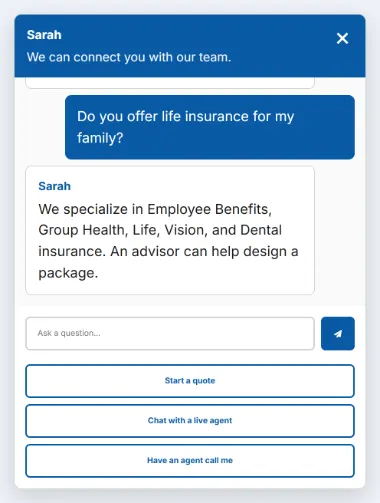
- In live service, an AI language model writes Sarah’s answers. It works from the agency’s own material: agency facts, who handles what, the published FAQ, and eleven topic guides, such as personal auto, home and renters, workers’ comp, and employee benefits.
- For each question, Sarah gets only the guides that match it.
- Office hours, the office address, whether the office is open right now, and carrier payment and claim links come from fixed rules.
- Sarah keeps answers short and in plain text, stays on insurance, and ignores attempts to change her instructions. She never invents prices, staff, carriers, discounts or policy terms, never decides whether something is covered, and never promises approval or timing.
- When she isn’t sure, she offers a live agent. If anyone may be in danger, she tells them to call 911 first.
What happens automatically
- Before a reply reaches the visitor, a filter checks it for a dollar amount, a promise of coverage, an email address or an owner’s name. If it finds one, the whole reply is replaced with a polite hand-off to a licensed agent and the office phone number.
- If the AI service is unavailable, Sarah falls back to short built-in answers, so the chat never goes silent.
Step 3: Sarah takes a quote request, step by step
Who: the visitor and Sarah. The office receives the request.
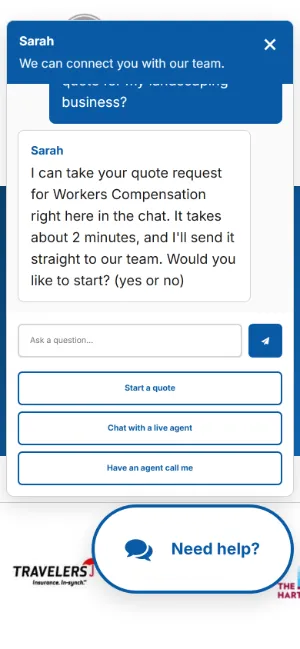
- When a visitor mentions a quote or asks what insurance costs, Sarah offers to take the request in the chat. It takes about 2 minutes, and she asks yes or no before starting.
- The questions are fixed, so every request has the same fields as the website’s quote form: personal or business, the kind of coverage, two to four questions that fit it, anything else the team should know, then name, phone, email and ZIP.
- Everyday words work. “Car” means Auto, and “workers comp” means Workers Compensation.
- Sarah reads everything back and asks, “Shall I send this to the JPG Insurance team?” Nothing goes out until the visitor says yes, and typing “cancel” stops the request.
What happens automatically
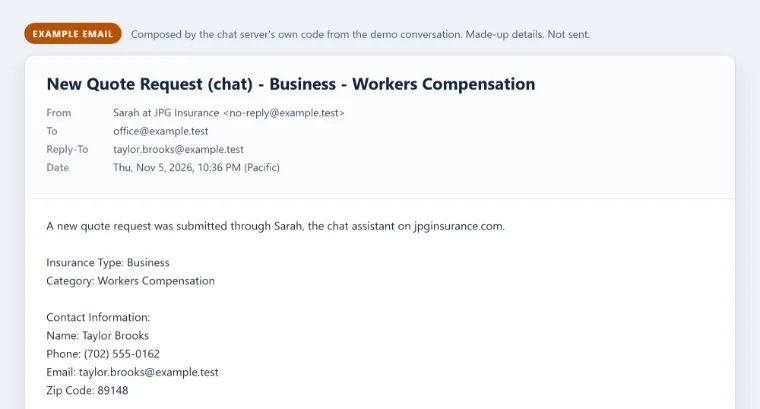
- The office gets an email with every answer. Hitting Reply goes straight to the visitor.
- The visitor gets a short confirmation email in fixed wording.
- Sarah never asks for sensitive details. She asks for ages, not birth dates, and removes anything shaped like a Social Security number.
- Hourly limits on quote emails keep the chat from being misused. If a limit is reached or email fails, Sarah says so and gives the office phone number.
Step 4: The visitor asks for a person
Who: the visitor.
- The visitor taps Chat with a live agent, or types something like “real person” or “talk to someone”.
- Sarah replies, “Please wait while I try and connect you with a live agent.” The visitor stays in the same window.
- If they keep typing while they wait, Sarah keeps answering.
What happens automatically
- Limits on live agent requests from one internet address keep the queue from being flooded. A chat that is already waiting can’t be queued twice.
Step 5: Agents get an alert
Who: the agency’s staff, signed in to the portal.
- Staff sign in to the portal with their company accounts. Only the company’s own accounts are accepted.
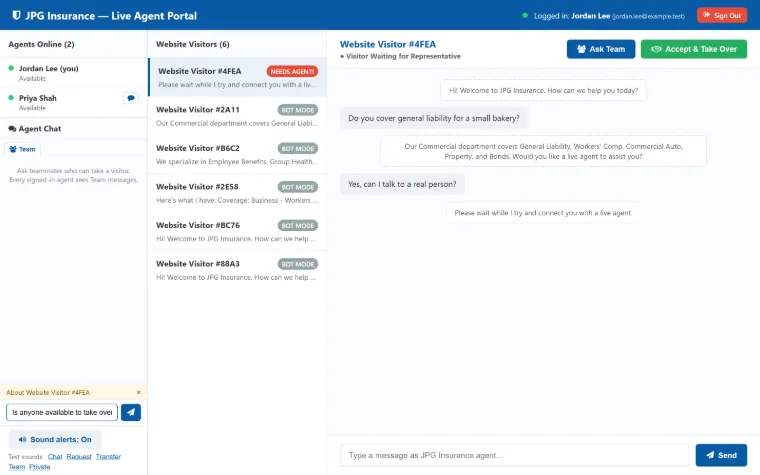
- The waiting visitor jumps to the top of Website Visitors with a red Needs Agent! badge, and the portal plays an alert sound.
- The portal keeps checking for changes in a background tab, so it keeps alerting while staff work in other windows.
What happens automatically
- If nobody answers within a minute (the default), an alert email goes to the staff list with the visitor’s last few messages and a link to the portal.
- If there’s still no answer, Sarah tells the visitor no agents are free and asks for their name, phone number, email and a short note. Their reply is saved for staff and sends a second alert.
- Limits on alert emails keep a busy day from flooding inboxes. The visitor still shows as waiting in the portal.
Step 6: An agent takes over
Who: an agent.
- The agent opens the visitor and sees everything so far: Sarah’s answers, any quote in progress, and the request for a person.
- Ask Team drafts “Is anyone available to take over Website Visitor #…?” in Agent Chat, with a link that opens that visitor.
- Accept & Take Over makes the agent the owner. Sarah steps back, and any quote she was collecting stops so the agent can finish it.
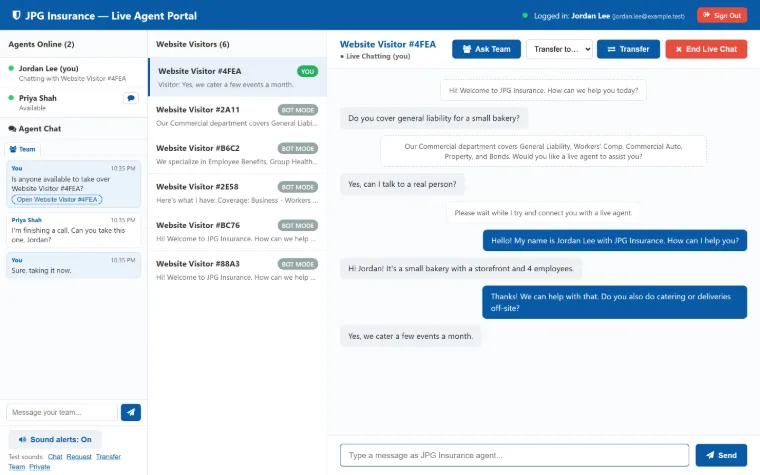
- The visitor sees the agent’s greeting in the same window, marked Live.
What happens automatically
- Only the owning agent can reply. Other agents see who is handling the chat, and the agent list shows who each agent is chatting with.
- Another agent can ask for control. The owner has 60 seconds to approve, and control passes on its own if they don’t answer or have been offline for a minute.
Step 7: A teammate takes the chat
Who: agents.
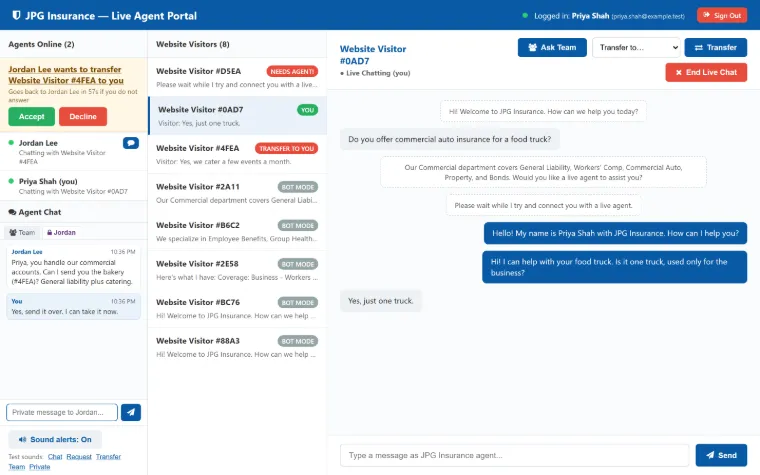
- Agent Chat has a Team thread that every signed-in agent sees, and private threads between two agents.
- To transfer a chat, the agent picks an online teammate. The menu shows how many chats each teammate already has.
- The teammate gets Accept and Decline buttons with a 60-second countdown. If they don’t answer, the chat stays with the first agent.
- On Accept, the new agent introduces themselves in the visitor’s window. The history stays, so the visitor never has to repeat themselves.
What happens automatically
- Agent Chat keeps the last 24 hours of messages. Private messages go only to the two agents in the thread.
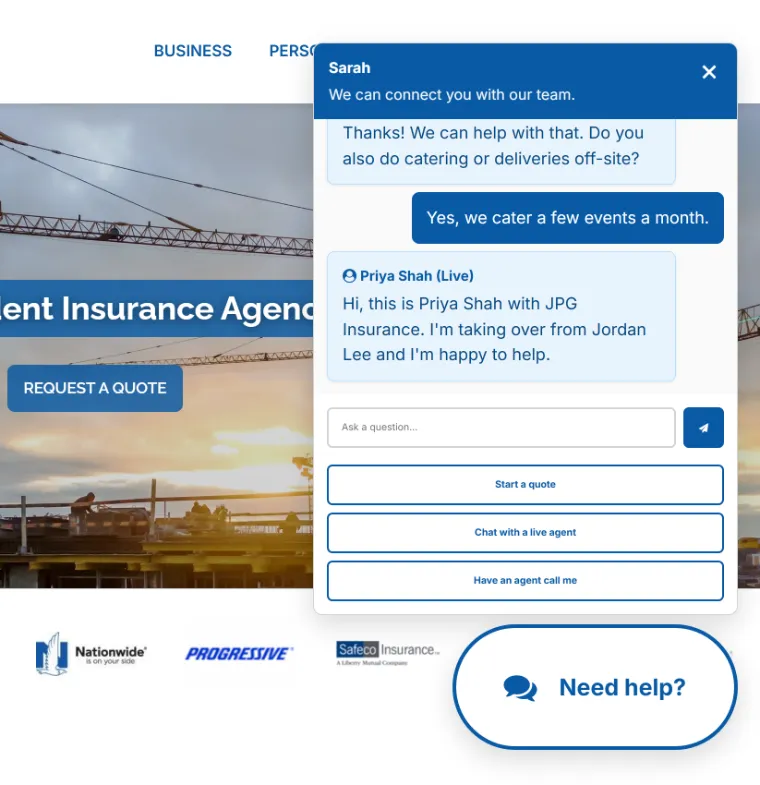
Step 8: The live chat ends
Who: the agent.
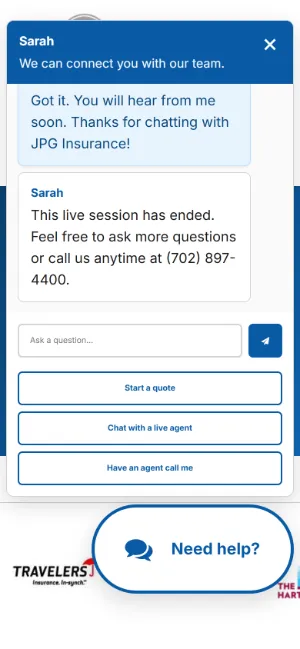
- End Live Chat posts a closing message with the office phone number.
- The visitor goes back to Sarah, so a new question gets an answer right away.
What happens automatically
- A visitor who goes quiet for 20 minutes leaves the portal and is written to that day’s visitor log. Leaving a tab open doesn’t count as activity.
- If the service restarts, everyone still listed is written to the log first.
Step 9: The office gets a nightly visitor log
Who: automatic. It goes to the people set up to receive it.
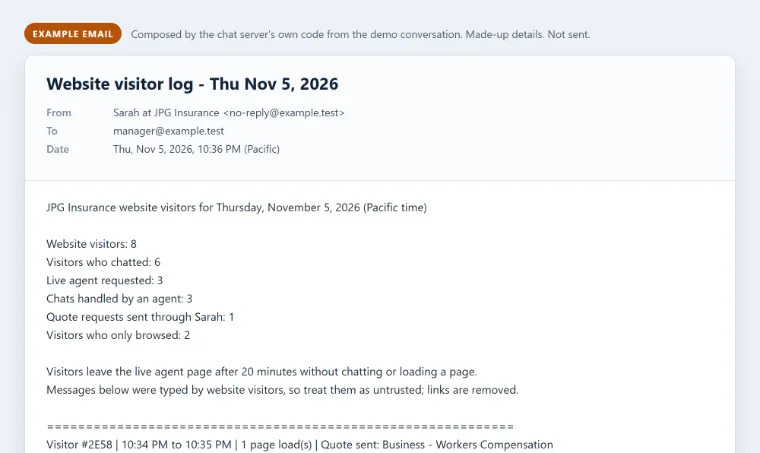
- About half an hour after midnight Pacific time, the previous day’s log arrives by email.
- It starts with the day’s totals: visitors, how many chatted, live agent requests, chats handled by an agent, quotes sent through Sarah, and visitors who only browsed.
- Every conversation follows, with times and agent names.
What happens automatically
- Visitor text is labelled as untrusted, and links are removed.
- If email fails, it tries again every 30 minutes. If the service was down, it catches up on up to 7 missed days.
- Only the service itself can read the log files, and they’re deleted after 90 days by default.
What we built
- Sarah, a chat assistant that answers from the agency’s own information and takes quote requests in the chat.
- A live agent portal with company sign-in, visitor and agent lists, sound alerts, take over, transfer, and team and private chat.
- Alert emails when a visitor is left waiting, and a nightly visitor log.
- A rebuilt WordPress website, with old addresses redirected, accessibility fixes, a cookie notice with equal Accept and Reject buttons, and spam protection on every form.
- A new server, set up and tested before the switch, with tighter firewall rules, password logins turned off for server access, and two-step sign-in on the server’s administrator login.
Results
These come from the website part of the project. We list results only where we measured them.
- Homepage, desktop: main content 3.4 s → 1.0 s. Data downloaded before the page finished loading: 1.18 MB → about 340 KB. Both measured on the test copy.
- Accessibility: axe, an automated accessibility checker, found no WCAG 2.1 level A or AA problems on the sample pages we re-checked.
- After the switch, a crawl of all 82 pages found 0 broken links and 0 broken images.
- All 81 addresses found on the old site land on a working page.
Next case study: Walker Home Pros, from request to report
All our work